One of the most useful things you can do during your free trial is talk to your own analytics in plain English. Seresa’s Gorilla assistant is an AI chat that reads your live data and answers questions about it directly, so you don’t have to dig through dashboards or wrestle with spreadsheets to understand what is happening on your site. This guide shows you how to connect your free trial data and start chatting with your data using AI.
Important: the trial chat is only a sampler #
The Gorilla Chat on seresa.io is just a small taster of what is possible for chatting with AI about your data during your trial. When you continue your subscription, for full analysis, you can connect your own AI tool — we recommend Claude Desktop — directly to your own BigQuery data and do anything the AI can do, from asking questions to building charts and dashboards.
What you will need #
- An active Seresa free trial.
- The inPIPE plugin installed and connected on your WordPress site.
- Your Data Chat Key — the key that begins with
h_lite_. We show you where to find it below.
Step 1: Find your Data Chat Key #
Your Data Chat Key is the secure token that lets the AI chat read your free trial analytics. To find it:
- In your WordPress admin, open the inPIPE plugin.
- Click the Subscription tab.
- Find the Data Chat Key field — the key begins with
h_lite_. - Click the Copy button next to it to copy the full key to your clipboard.
Keep this key private — it grants access to your analytics data.
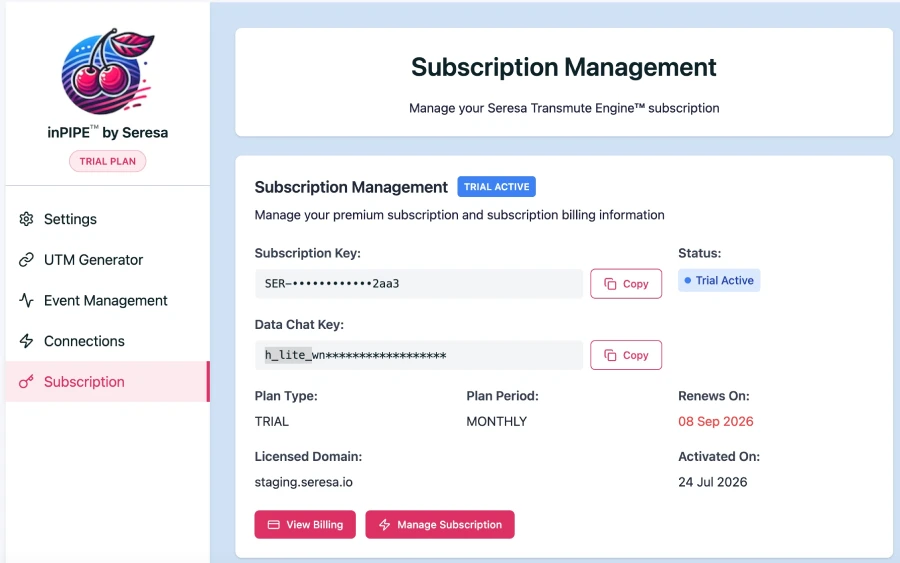
h_lite_) using the Copy button.Step 2: Open the Gorilla AI chat on seresa.io #
- Go to seresa.io.
- On any page, look for the Gorilla icon in the bottom-right corner of the screen.
- Click the icon to open the chat window.
Step 3: Connect your data #
- In the chat, click the Let me talk with my data button.
- When you are prompted with “Paste your Harvest Lite data key to see your analytics”, paste the Data Chat Key you copied in Step 1.
- Click the Connect button.
Once connected, the AI chat has full access to your free trial data and you can start asking questions about your site in plain English.
Viewing and exporting your data #
After you connect, you have several ways to explore your analytics inside the chat. You can also download your data at any time as either a CSV file (ideal for opening in a spreadsheet) or a plain-text TXT file.
Going further: deeper analysis with AI #
The built-in AI chat is designed to give you a quick, simple view of what is happening with your data. If you want to dig deeper, export a wider range — for example the 7-day view — and paste it into an AI assistant of your choice. You can then ask that assistant to analyse the export and answer specific questions, such as which pages drive the most engagement or how your traffic changed over the week.
Need help? #
If your Data Chat Key is not recognised or the AI chat cannot connect, check that you copied the entire key (starting with h_lite_) and that your free trial is still active. For more help, see Troubleshooting Common Trial Issues.