Create a Separate GA4 Property for Transmute Engine #
Overview #
When testing Transmute Engine, it is strongly recommended to create a separate Google Analytics 4 (GA4) property dedicated to testing. This ensures that your test data does not contaminate your production analytics, allowing you to safely experiment with server-side tracking configurations without affecting your live business metrics.
Later, it’s easier to switch to your new server-side tracking property as your main data property.
Why create a separate property?
- Data Integrity: Keep your production analytics clean and accurate
- Safe Testing: Experiment with configurations without risk to live data
- Easy Comparison: Compare server-side vs client-side tracking side-by-side
- Full Control: Test different event structures and parameters freely
- Quick Rollback: Issues in testing won’t affect your production property
This guide will walk you through creating a dedicated GA4 property for your Transmute Engine trial, including obtaining both your Measurement ID and API key.
Step 1: Access Admin Panel #
- Log into Google Analytics at analytics.google.com
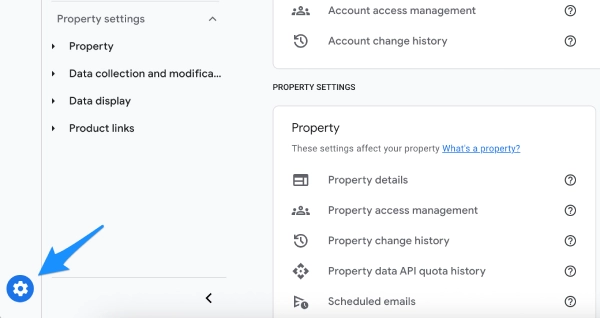
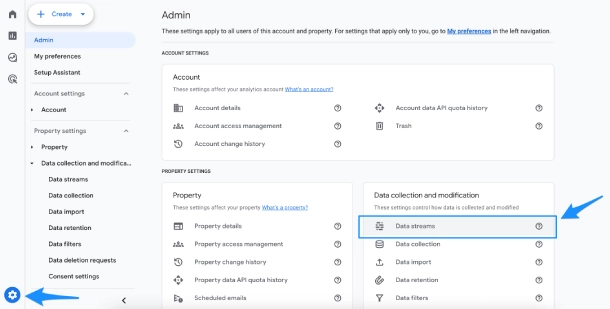
- Click the Admin (gear icon) in the bottom left corner
- Verify you are in the correct account
Step 2: Create New Property #
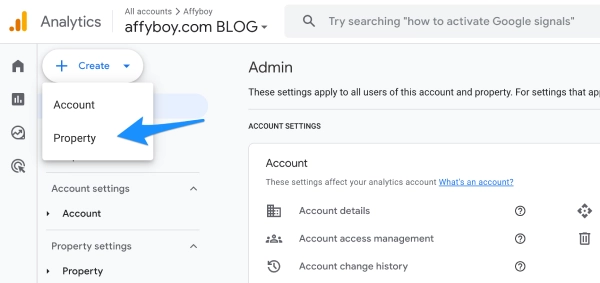
- At the top of the Admin panel, click the Create button
- From the dropdown menu, select Property
Quick Link: If you want to use a direct link, click here to create a new property.
Step 3: Property Details #
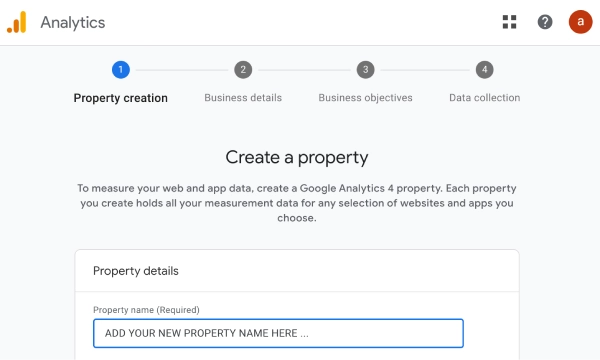
- Property name: Enter a descriptive name (e.g., “Transmute Engine by Seresa – TEST”)
- Reporting time zone: Select your timezone
- Currency: Select your currency
- Click Next
Step 4: Choose Your Business Objective #
Google will ask you about your business objectives to help configure relevant features and reports. This step helps GA4 customize the interface and recommendations for your specific use case.
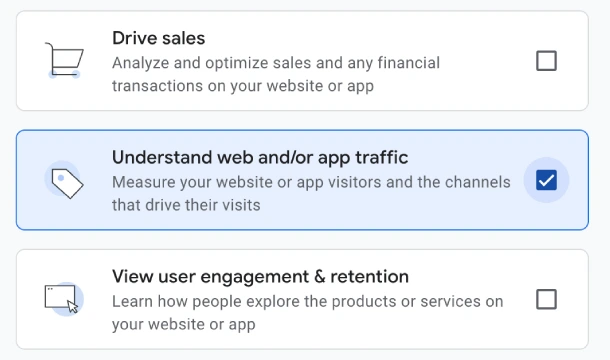
- Select “Understand web and/or app traffic” if you are not sure which option to choose
- This is the recommended option for most Transmute Engine implementations as it focuses on website analytics
- You can select multiple objectives if they apply to your business
- Click Create to proceed
Step 5: Choose Platform for Data Collection #
After creating your property, you need to set up a data stream to start collecting data from your website:
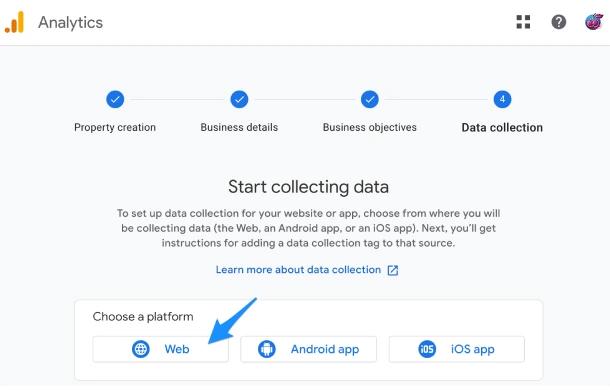
- You will be prompted to choose the platform you want to collect data from
- Select Web to collect data from your website
- Note: iOS and Android options are available if you have mobile apps, but for Transmute Engine testing, choose Web
Step 6: Set Up Your Data Stream #
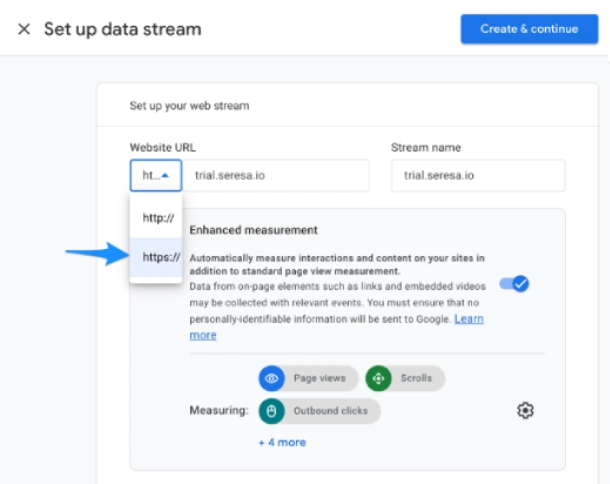
Configure your web data stream with your site details. This creates the connection between your website and your GA4 property:
- Website URL: Enter your complete website URL including https:// (e.g., https://yoursite.com)
- Stream name: Give your stream a memorable nickname (e.g., “Production Website,” “Test Site,” or your domain name)
- Enhanced Measurement settings: Leave the default Enhanced Measurement settings enabled unless you have specific requirements to change them
- Enhanced Measurement automatically tracks page views, scrolls, outbound clicks, site search, video engagement, and file downloads
- You can customize these settings later if needed
- Click Create stream to proceed
Step 7: Access Measurement ID #
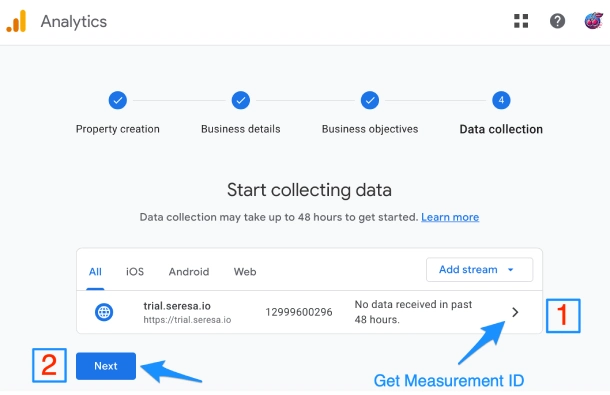
After creating your data stream, you’ll be taken to the stream details page where you can find your Measurement ID:
- Look for the Measurement ID section in the top right corner of the data stream details
- Click on option 1 (View tag instructions) or the Measurement ID section to reveal and access your Measurement ID
- This ID is essential for configuring Transmute Engine to send data to this specific GA4 property
Step 8: Copy Your Measurement ID #
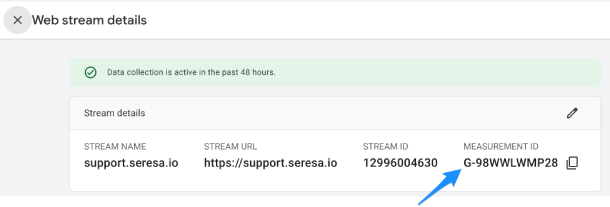
IMPORTANT: Record your Measurement ID now – you will need this for your Transmute Engine configuration:
- The Measurement ID format is: G-XXXXXXXXXX (always starts with “G-“)
- Copy the entire Measurement ID exactly as shown
- Save it in a secure location – you will need this when configuring inPIPE free with Transmute Engine
- This ID is used to send data from your website to this specific GA4 property
- Keep this tab or window open as you’ll need to return here for the API key in the next steps
Step 9: How to Find Your Measurement ID Later #
If you need to access your Measurement ID again in the future, here’s how to find it:
- Go to Admin (gear icon in the bottom left)
- Under the Property column, click Data Streams
- Click on your web data stream name
- Your Measurement ID will be displayed in the top right corner of the stream details page
- You can always return to this page to view your Measurement ID, stream settings, and create API keys
Step 10: Obtain Your API Key #
For Transmute Engine to send server-side events to GA4, you need to create an API key (also called a Measurement Protocol API secret):
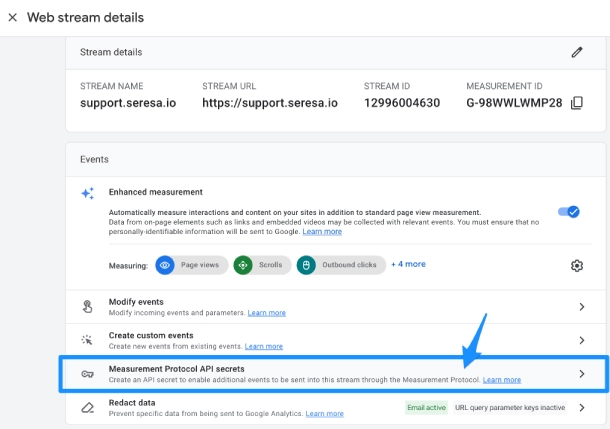
- First, open up your Measurement Stream ID (Data Stream details page) as shown in Step 9
- Scroll down to the Measurement Protocol API secrets section
- Click Create to generate a new API secret
- This API key allows Transmute Engine to securely send events directly to Google Analytics from your server
Step 11: Review Terms and Create API Key #
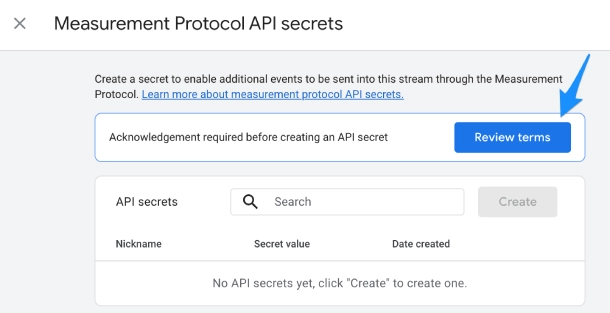
Before creating your API key, Google will display important information about the Measurement Protocol:
- Review the Terms carefully – understand that this API secret will allow server-side data collection
- The terms explain how the Measurement Protocol works and your responsibilities when using it
- Once you’ve reviewed and understand the terms, click the Create button that appears
- This will generate your API secret key
Step 12: Name Your API Key #
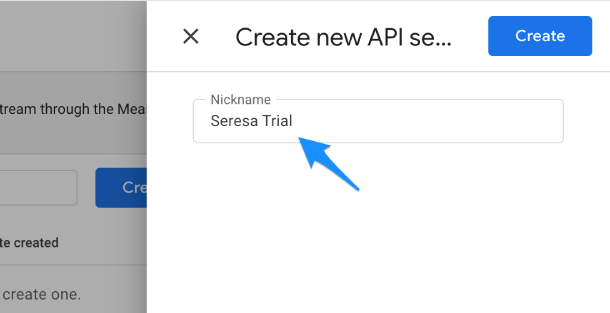
Give your API key a descriptive, memorable name so you can identify it later:
- Enter a nickname that clearly identifies the purpose of this API key
- Good examples: “Transmute Engine – Production,” “inPIPE Server-Side Tracking,” or “Seresa Test Environment”
- This name helps you manage multiple API keys if you create them for different environments or purposes
- Click Create to generate your API secret
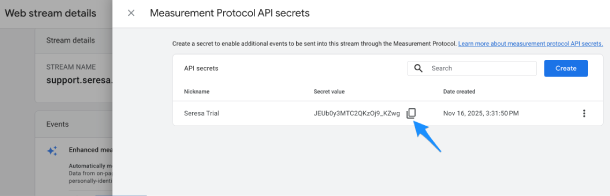
Step 13: Secure Your API Key #
- Copy the API key immediately and completely
- Keep it very secure – treat this like a password:
- Never share it publicly or commit it to public code repositories
- Store it in a secure password manager or encrypted storage
- Only share it with authorized team members who need it
- It is not saved in WordPress. It is passed by secure API to your Transmute Engine where it’s stored securly
- You will need both the Measurement ID (from Step 8) and this API key to configure Transmute Engine in inPIPE
- If you lose this API key, or need to changed it you’ll need to delete it and create a new one – you will need to create a new connection in the Connections area of inPIPE – you cannot change an existing key
Next Steps #
Congratulations! You now have:
- ✅ A dedicated GA4 property for Transmute Engine testing
- ✅ Your Measurement ID (G-XXXXXXXXXX)
- ✅ Your API secret key (for server-side tracking)
What to do next:
- Keep your Measurement ID and API key in a secure location
- Configure these credentials in your inPIPE free plugin’s Transmute Engine settings
- Start your trial and begin testing server-side tracking
- Monitor your new GA4 property to verify data is flowing correctly
Need help? If you encounter any issues during setup, please contact “> or visit our support documentation.