What this page is for: it walks you through creating a Google service account — the credential Direct Index needs so it can submit your pages to Google Search Console for indexing automatically. It does one job, in order, and takes about 10 minutes from start to finish.
Why you need it: Direct Index can send your new and updated pages straight to Google for indexing, instead of waiting for Google to crawl them on its own. To do that on your behalf it needs its own Google identity — the service account — plus a key file that proves it is allowed to act for your site. You create both inside your own Google account and stay in full control.
By the end you will have two things: a service account email address and a JSON key file. You paste the JSON key into Direct Index, and that is all Direct Index ever needs.
First, a quick map of the pieces #
Google spreads this across a few different products, which is the only confusing part. Here is what each piece is, in plain English:
| Piece | What it is |
|---|---|
| Google Account | Your normal Google login. Everything below lives underneath it. |
| Cloud Project | A labelled container in Google Cloud that groups a set of Google services together. Think of it as a box. You create one box and call it something like “Direct Index”. |
| Indexing API | The Google service that receives “please index this page” requests. You switch it on inside your project. |
| Service Account | A special, non-human Google login that belongs to the project — a robot account. It is the identity Direct Index uses to talk to Google for you, so you never have to share your own password. |
| Key (JSON file) | The service account’s credential — a small file you download. Direct Index keeps this file and uses it to prove it is that service account. |
| Search Console (Owner) | Google will only let the service account touch a website it is an Owner of. So you add the service account’s email as an Owner of your verified site in Search Console. |
How they fit together:
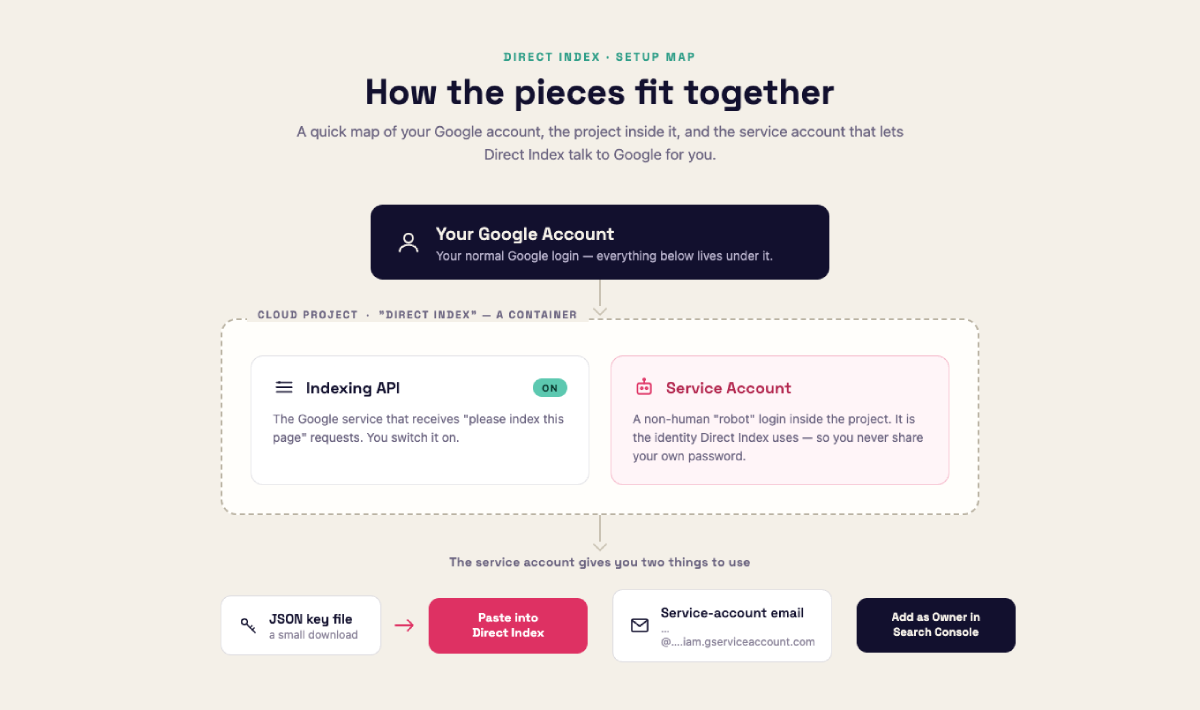
In short: you make a project, turn on the Indexing API, create a service account inside it, download that account’s key, and finally tell Search Console to trust that account on your site. The steps below do exactly that, in order.
Before you start #
- A Google account (the same one you use for Google Search Console is easiest).
- Your website already added and verified in Google Search Console. If it is not verified yet, do that first — Direct Index can only submit pages for a site you own.
- About 10 minutes.
Step 1 — Select or create a Google Cloud project #
You can use an existing project or create a new one — either is fine.
- Go to the Google Cloud Console and sign in with the Google (Gmail) account you want to use. If you are already signed in and have more than one Google account, switch to the account you want to use for this project.
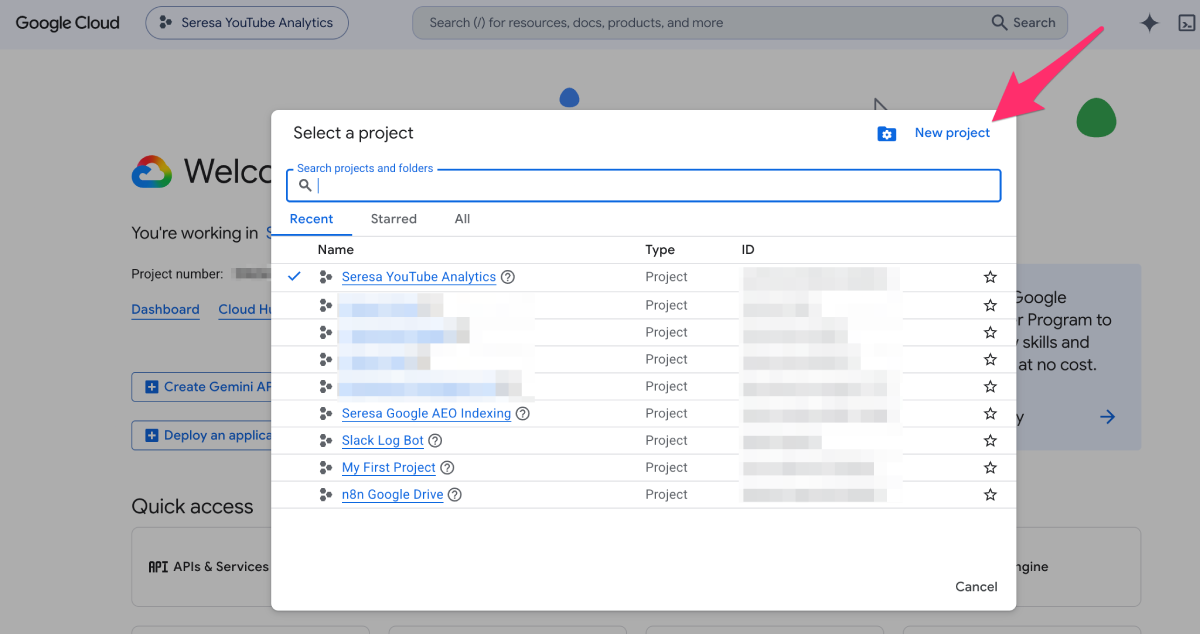
- At the top of the page, click the project picker (it shows the current project name). Pick an existing project from the list, or click New project (top right) to make one.
- If you are creating a new project, give it a name you will recognise later, for example
Direct Index, and click Create. - Wait a few seconds, then make sure the project you want is the one selected in the project picker.
Step 2 — Turn on the Indexing API #
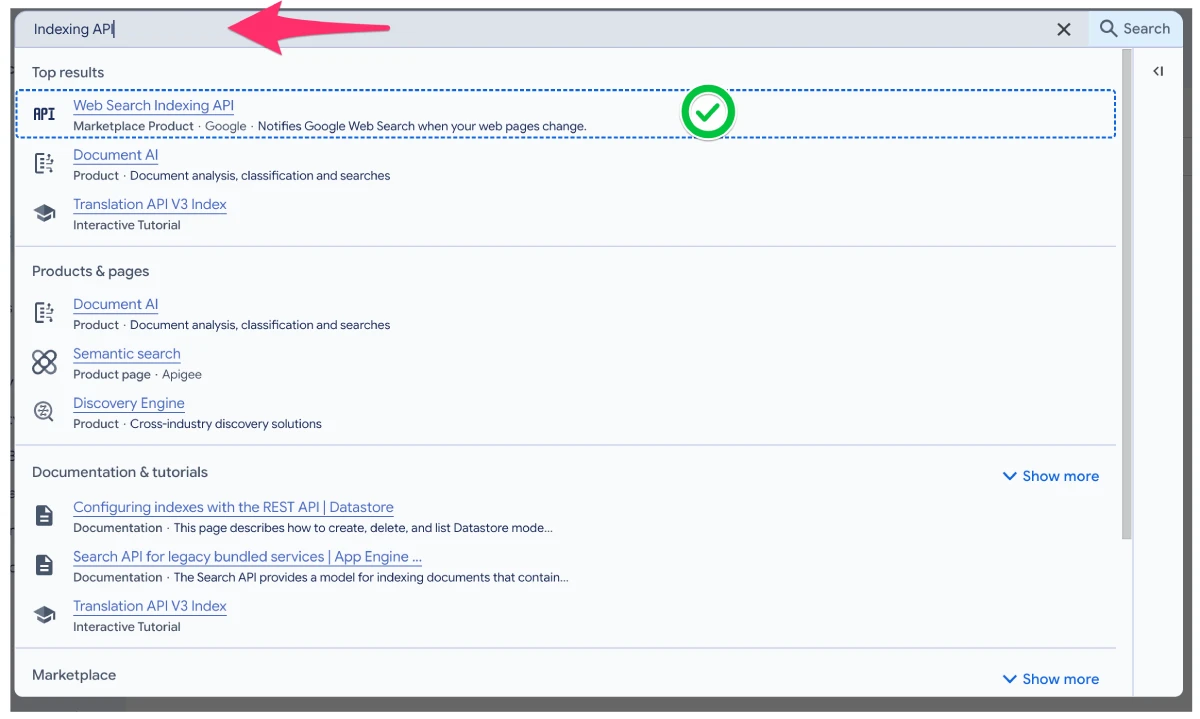
- In the Cloud Console search bar at the top, type Indexing API.
- In the results, open Web Search Indexing API (the top match).
- Click Enable. (If the button already says Manage, it is already on — nothing to do.)

Step 3 — Create the service account #
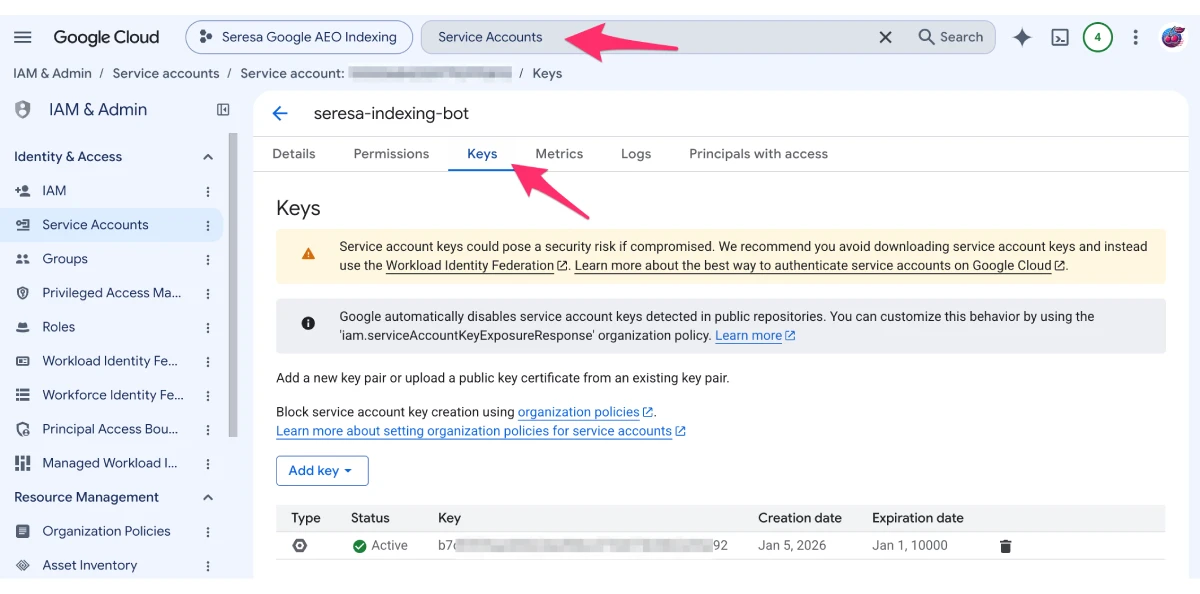
- In the search bar, type Service Accounts and open the page (it lives under IAM & Admin).
- Click Create Service Account.
- Enter a name, for example
direct-index. Google fills in a service account ID and email for you. Click Create and Continue. - The next two sections (roles, and user access) are optional — leave them blank, click Continue, then Done.
Step 4 — Download the JSON key #
- Back on the Service Accounts list, click the service account you just created.
- Open the Keys tab.
- Click Add Key, then Create new key.
- Choose JSON and click Create. A
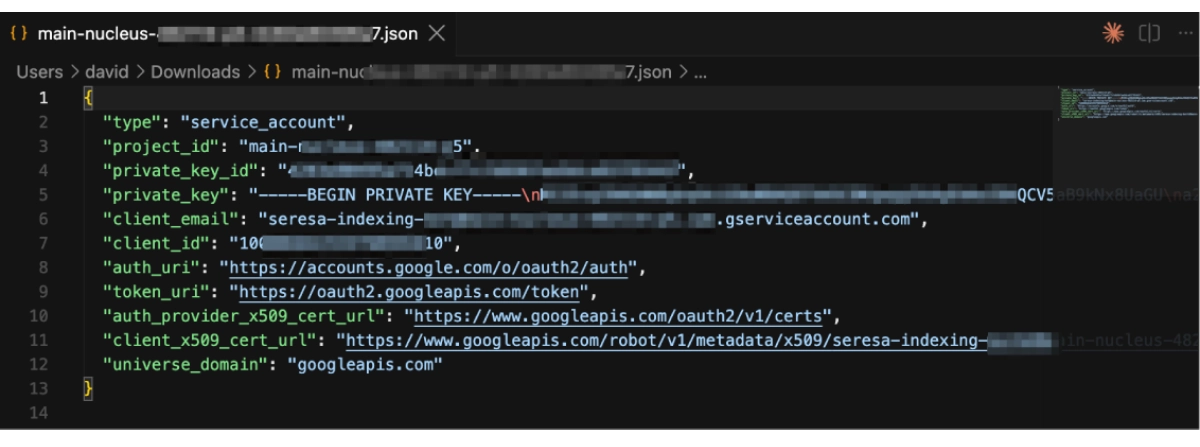
.jsonfile downloads to your computer.
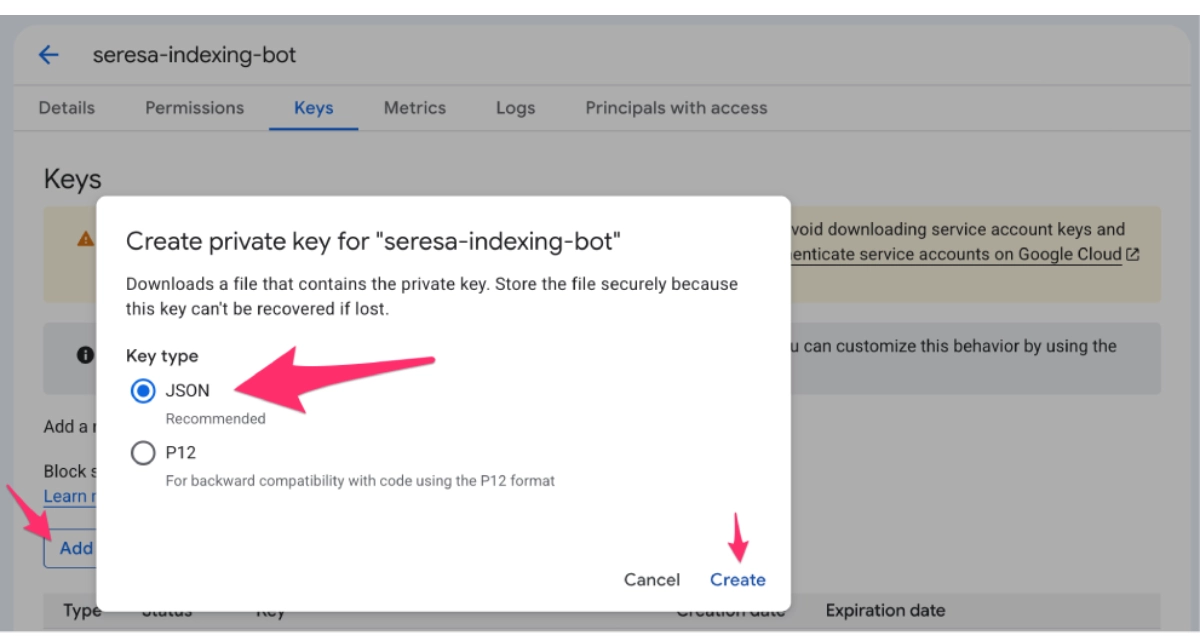
Keep this file safe. It works like a password — anyone who has it can act for your site. Google will not let you download it a second time, so store it somewhere secure. If you ever lose it or think it has leaked, delete that key here and create a new one.
Step 5 — Copy the service account email #
On the service account page, on the Details tab, copy its email address. It looks like this:
You need this email for the next step. (It is also inside the JSON file, listed as client_email.)
Step 6 — Give the service account access to your site in Search Console #
The service account can only submit pages for a site it has been granted access to. Add it as an Owner of your property:
- Open Google Search Console and select your website property.
- Go to Settings (near the bottom of the left menu), then Users and permissions.
- Click Add user.
- Paste the service account email from Step 5.
- Set Permission to Owner, then click Add.
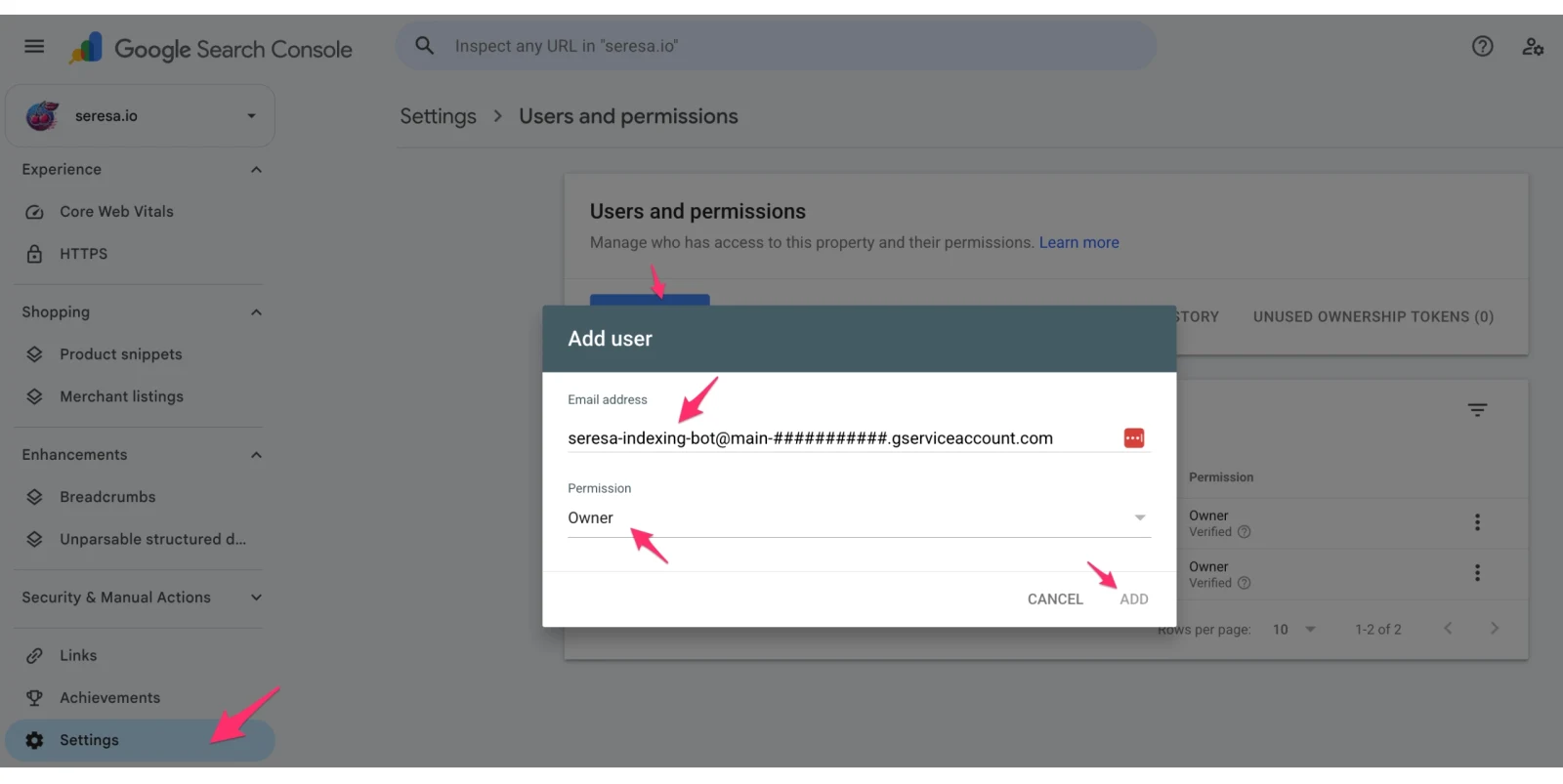
Owner access is required here — a lower “Full” or “Restricted” permission is not enough for the Indexing API.
Step 7 — Add the key to Direct Index #
- Open the Direct Index settings in the tool you are using it with.
- Upload, or paste the contents of, the JSON key file from Step 4.
- Save. Direct Index can now submit your pages to Google automatically whenever they are published or updated.
Good to know #
- One service account covers all your sites. If you manage several properties in the same Search Console account, add the same service account email as an Owner on each one — you do not need a separate key per site.
- Daily limit. Google allows up to 200 URL submissions per day per project by default. That is plenty for most sites; very large sites can ask Google to raise it.
- The key does not expire, but you can revoke it at any time from the Keys tab in the Cloud Console.
Related #
- How Google Is Organised: Accounts, Projects & Service Accounts — a plain-English overview of how these pieces fit together.
- Official Google reference: Indexing API prerequisites.